
To learn how to organize channels in TiviMate, open the TV Guide, press the Left arrow to display the group sidebar, and select Manage Groups. Toggle the eye icon to hide foreign or adult categories, reorder your favorite channel lists to the top, and create custom folders (e.g., "Sunday Football" or "Local News") for lightning-fast channel surfing.
When you subscribe to a premium streaming provider like TiviMate Pro USA, you instantly gain access to over 20,000+ live HD and 4K channels spanning US sports networks, regional news affiliates, international broadcasts, and premium movies. However, scrolling through hundreds of foreign categories you never watch creates unnecessary clutter.
Mastering how to organize channels in TiviMate turns an overwhelming directory into a personalized cable-style interface tailored specifically to your family's viewing preferences. In this complete 2026 walkthrough, we demonstrate how to hide unwanted categories, create custom channel folders, reorder favorites, and protect sensitive content with a master PIN.
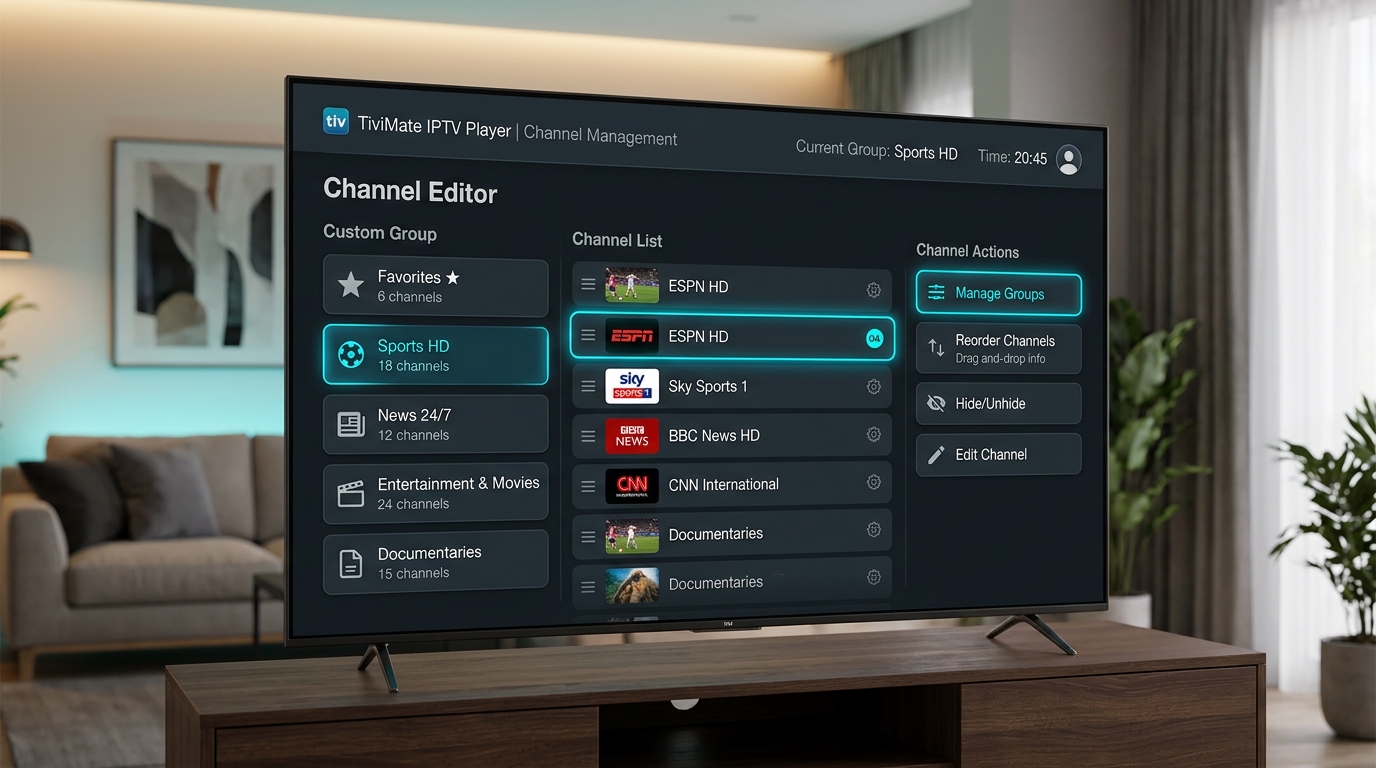
1. How to Hide Unwanted Channel Groups in TiviMate
Hiding categories you do not watch is the single most effective way to streamline your TV guide. It does not delete the channels from your provider; it simply conceals them from your active guide view:
- Open the main TV Guide in TiviMate.
- Press the Left arrow on your remote control twice to navigate to the group category list (e.g., All Channels, USA Entertainment, USA Sports, UK Cinema).
- Scroll to the very bottom of the category column and click on Manage Groups.
- Select TV (or Movies / TV Shows if organizing VOD).
- You will see a checklist of every channel group in your playlist. Simply uncheck the groups you don't wish to see (for example, foreign language feeds, PPV replays, or shopping networks).
- Press the Back button on your remote. Your TV guide will instantly refresh, displaying only your curated categories.
2. Reordering Channel Groups: Putting Priority Sports First
By default, TiviMate displays categories in the sequence provided by the server. If your favorite sports or news channels are buried halfway down the list, you can reorder them to the very top:
- In the TV Guide, open the left category sidebar.
- Hover over the group you want to move (e.g., USA Live Sports or NFL Sunday Pass).
- Press and hold the Select button on your remote for two seconds to trigger the side options menu.
- Select Reorder groups.
- Use the Up / Down arrows on your directional pad to drag the category to your desired position (such as immediately below Favorites).
- Press Select to lock in the new position.
3. Creating Custom Channel Groups (e.g., "GameDay Sunday")
One of TiviMate's most powerful capabilities is creating custom group containers where you can combine channels from different default categories into one centralized hub:
- Open Settings > Playlists > (Your Playlist) > Manage Groups > Create Group.
- Enter a descriptive name (e.g., 🏈 NFL GameDay or 🎬 4K Cinema).
- Navigate through your existing channels, long-press Select on any channel you want to add, and choose Copy to group.
- Your custom group will now appear in your primary TV guide, letting you access CBS, FOX, RedZone, and ESPN without switching back and forth between regional categories.
4. Managing Individual Channel Numbers & Renaming Channels
If you are accustomed to traditional cable channel numbering (e.g., ESPN on 206, HBO on 501), TiviMate lets you assign custom numbers:
- • Custom Channel Numbers: Long-press Select on any channel, choose Channel options > Channel number, and type your preferred number.
- • Renaming Feeds: Under Channel options, select Edit channel name to shorten long titles or add labels like "4K UHD".
- • Manual EPG Assignment: If a channel title does not link automatically to TV listings, select Assign EPG to bind it to our verified XMLTV guide database.
5. Securing Categories with Parental Controls & Master PIN
If you have children or guests in your home, you can lock adult categories or pay-per-view sections behind a secure 4-digit code:
Go to Settings > Parental Controls and switch it to ON. Enter your desired 4-digit security PIN. Next, select Blocked groups and select the categories you want restricted. When a family member navigates to a locked folder, TiviMate will require PIN entry before revealing channel previews.
Remember to Backup Your Custom Organization!
Once you have organized your ideal channel layout, always make a backup so your hard work is preserved. Read our sister guide on how to backup and restore TiviMate in 60 seconds to export your settings to USB or cloud storage.
Experience Cable-Grade Organization with TiviMate Pro USA
A great IPTV service is only as enjoyable as your daily user experience. When you combine TiviMate Pro USA's high-speed US server nodes with a decluttered channel guide, finding and watching live sports, breaking news, and primetime movies feels smoother than any traditional cable box.
Explore our flexible subscription plans starting at $29 for 3 months, or message our 24/7 technical desk to request a risk-free 24-hour test stream on your streaming device today.